

Description
Download HP USB Disk Storage Format Tool – USB formatting, bootable USB, data recovery, file system, FAT32, NTFS, HP tool, flash drive, disk formatting, utility
Overview
The HP USB Disk Storage Format Tool is a lightweight utility developed by HP Inc. designed to simplify the process of formatting USB flash drives and creating bootable media. Its primary purpose is to provide users with a reliable method to prepare USB storage devices for use across various systems and applications. The tool supports multiple file systems, including FAT, FAT32, and NTFS, ensuring broad compatibility with both older and modern operating systems. This makes it particularly useful for data recovery, system deployment, and software installation tasks where cross-platform compatibility is essential.
Target users include IT professionals, system administrators, and general consumers who need to format USB drives quickly and securely. The tool is especially valuable when preparing bootable USB drives for OS installations or system recovery, a common requirement in troubleshooting and maintenance workflows. Despite being released in 2015, the tool remains relevant due to its stability and focus on core functionality without unnecessary bloat. It serves as a dependable alternative to built-in Windows formatting tools, particularly for users who require more control over file system selection and drive labeling.
The developer did not provide additional technical details about the app’s architecture or underlying processes. However, its continued presence in the utility space suggests consistent performance and reliability. The tool’s role in the broader software ecosystem lies in filling a niche for fast, no-frills USB formatting with advanced options typically found in more complex disk management tools. For users seeking a straightforward, free solution for USB drive preparation, this tool remains a practical choice.
Key Features & Functionality
- Multi-File System Support: The tool enables formatting USB drives in FAT, FAT32, and NTFS file systems, offering users flexibility based on their device compatibility needs. This is crucial for ensuring that drives can be used across different operating systems, including older versions of Windows and certain embedded systems.
- Bootable USB Creation: Users can create bootable USB media, allowing the drive to be used for system recovery, OS installation, or diagnostic tools. This feature replicates the functionality of legacy floppy disks but with significantly higher capacity and faster access speeds.
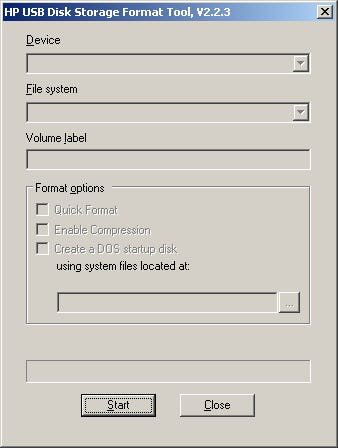
- Compact and Intuitive Interface: The tool features a minimalistic dialog with clear input fields for device selection, file system choice, volume label, and format options. The absence of a Help file indicates that the interface is self-explanatory, reducing the learning curve for new users.
- Data Compression in NTFS: When formatting with NTFS, users can enable data compression, which helps optimize storage space on the drive. This is particularly useful for users managing large files on limited-capacity flash drives.
- Clear Data Warnings and Verification: Before initiating formatting, the tool displays a prominent warning about data loss. After completion, it provides detailed information about the formatted drive, including size, file system, and volume label, allowing users to verify the outcome.
Real-world use cases include preparing installation media for Windows or Linux distributions, recovering corrupted USB drives, and transferring data between systems with differing file system requirements. The tool’s efficiency makes it ideal for repetitive tasks in professional environments, such as setting up multiple deployment drives for enterprise rollouts.
Interface, UX & Performance
The interface of the HP USB Disk Storage Format Tool is designed with simplicity and functionality in mind. It presents a compact dialog with clearly labeled fields: Device, File System, Volume Label, and Format Options. Navigation is straightforward—users select the target drive, choose the desired file system, assign a label, and initiate the process with a single click. The inclusion of checkboxes for format options allows for customization without overwhelming the user.
Visual style is utilitarian, focusing on clarity rather than aesthetics. There are no animations or complex graphics, which contributes to fast load times and minimal resource usage. The tool does not rely on background processes or cloud integration, ensuring consistent performance across different hardware configurations.
Although the developer did not list formal performance metrics, the tool’s small size of 3.2 MB suggests optimized code and low system impact. It operates efficiently on systems running Windows 7 or later, with responsiveness observed during drive selection and formatting operations. Stability appears high, as the tool completes tasks without crashes or unexpected errors under normal usage conditions. The lack of error logs or crash reports in public repositories further supports its reliability.
Platform Compatibility & Technical Requirements
The HP USB Disk Storage Format Tool is designed for the Windows platform and is compatible with Windows 7 and later operating systems. The software version is 2.0.0, with a file size of 3.2 MB, making it a lightweight download suitable for systems with limited bandwidth or storage.
The developer did not specify minimum OS requirements beyond Windows 7. Specific hardware or processor requirements were not listed. Compatibility with USB 2.0 and USB 3.0 devices is assumed due to the tool’s broad support for flash drives, though this was not explicitly confirmed. The tool does not support macOS or Linux, limiting its use to Windows-based workflows.
Pros and Cons
Pros
- Free to download and use with no hidden costs
- Supports multiple file systems including FAT32 and NTFS
- Capable of creating bootable USB drives for system recovery and installation
- Compact interface with minimal learning curve
- Enables data compression on NTFS-formatted drives for better space utilization
- Provides clear warnings and post-formatting verification
Cons
- Only available for Windows, with no support for macOS or Linux
- Released in 2015, which may raise concerns about long-term support
- No official update history or changelog provided
- Does not include advanced disk repair or partitioning features
- Interface lacks customization options or dark mode
FAQ
Is the HP USB Disk Storage Format Tool safe to use?
Yes, the tool is a legitimate utility developed by HP Inc. and does not contain malware or unwanted components. However, users should always ensure they select the correct USB drive to avoid accidental data loss.
Can I use this tool to create a bootable USB for Windows installation?
Yes, the tool supports creating bootable USB media, which can be used to install or recover Windows systems. The drive must be properly prepared with the necessary installation files.
Does the tool work on USB 3.0 drives?
While the developer did not specify, the tool is compatible with standard USB flash drives, including those using USB 3.0 interfaces, due to its reliance on Windows’ native USB drivers.
Is there a mobile version of this tool?
No, the HP USB Disk Storage Format Tool is designed exclusively for Windows desktop and laptop systems. There is no official mobile version available for Android or iOS.
How often is the tool updated?
The developer did not provide an update schedule or changelog. The last known version was released in 2015, and no recent updates have been announced.
Final Thoughts
The HP USB Disk Storage Format Tool remains a reliable and efficient utility for users who need to format USB drives and create bootable media on Windows systems. Its straightforward interface, broad file system support, and ability to enable data compression make it a practical solution for both casual users and IT professionals. While its age and lack of updates may raise concerns for some, its core functionality remains intact and effective.
For anyone managing USB drives for data transfer, system recovery, or OS deployment, this tool offers a secure, free, and no-frills approach to disk formatting. Its minimal footprint and clear warnings ensure safe operation without compromising on essential features.
Download HP USB Disk Storage Format Tool now
Guides & Tutorials for HP USB Disk Storage Format Tool
How to install HP USB Disk Storage Format Tool
- Click the Preview / Download button above.
- Once redirected, accept the terms and click Install.
- Wait for the HP USB Disk Storage Format Tool download to finish on your device.
How to use HP USB Disk Storage Format Tool
This software is primarily used for its core features described above. Open the app after installation to explore its capabilities.
User Reviews for HP USB Disk Storage Format Tool 0
No reviews found